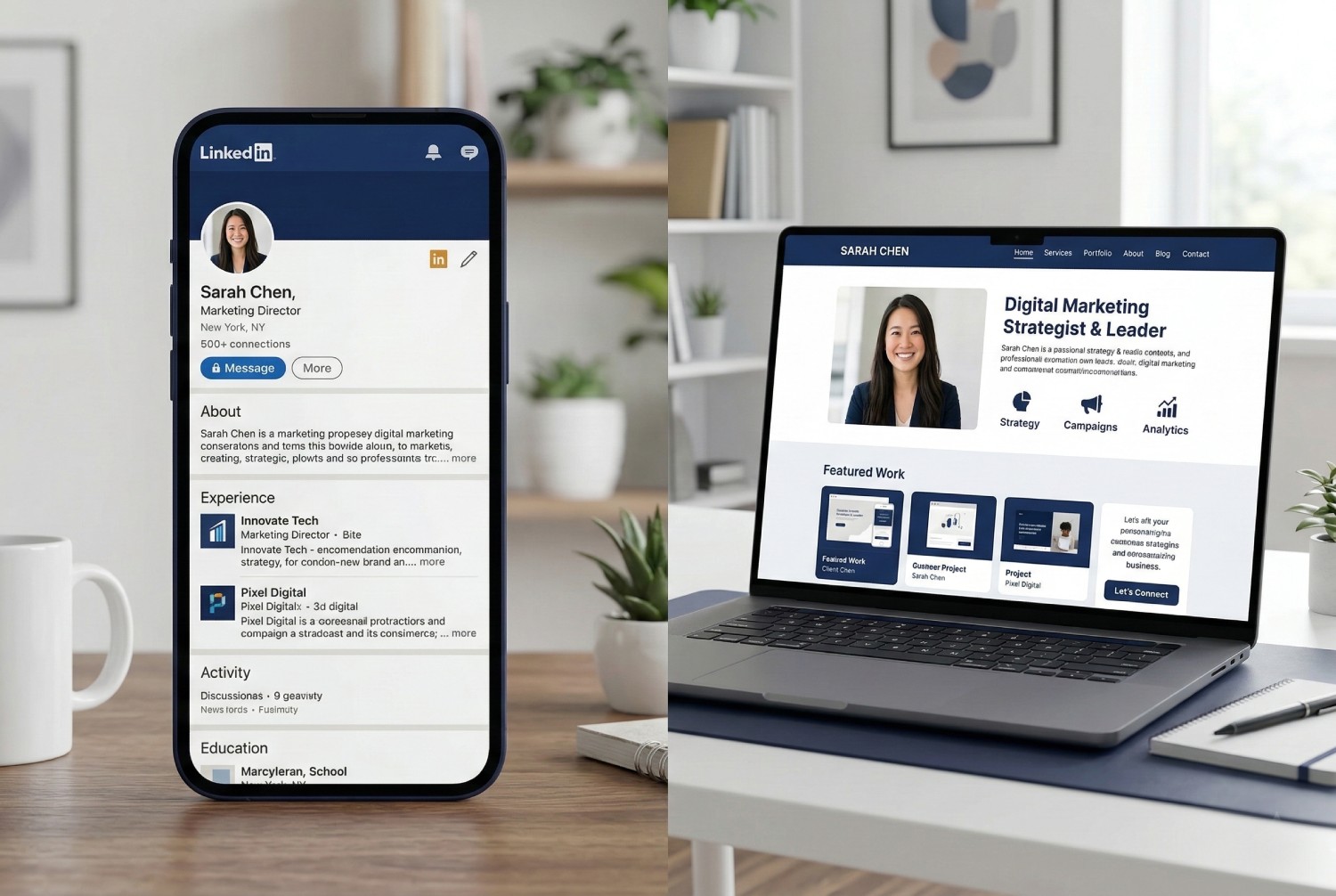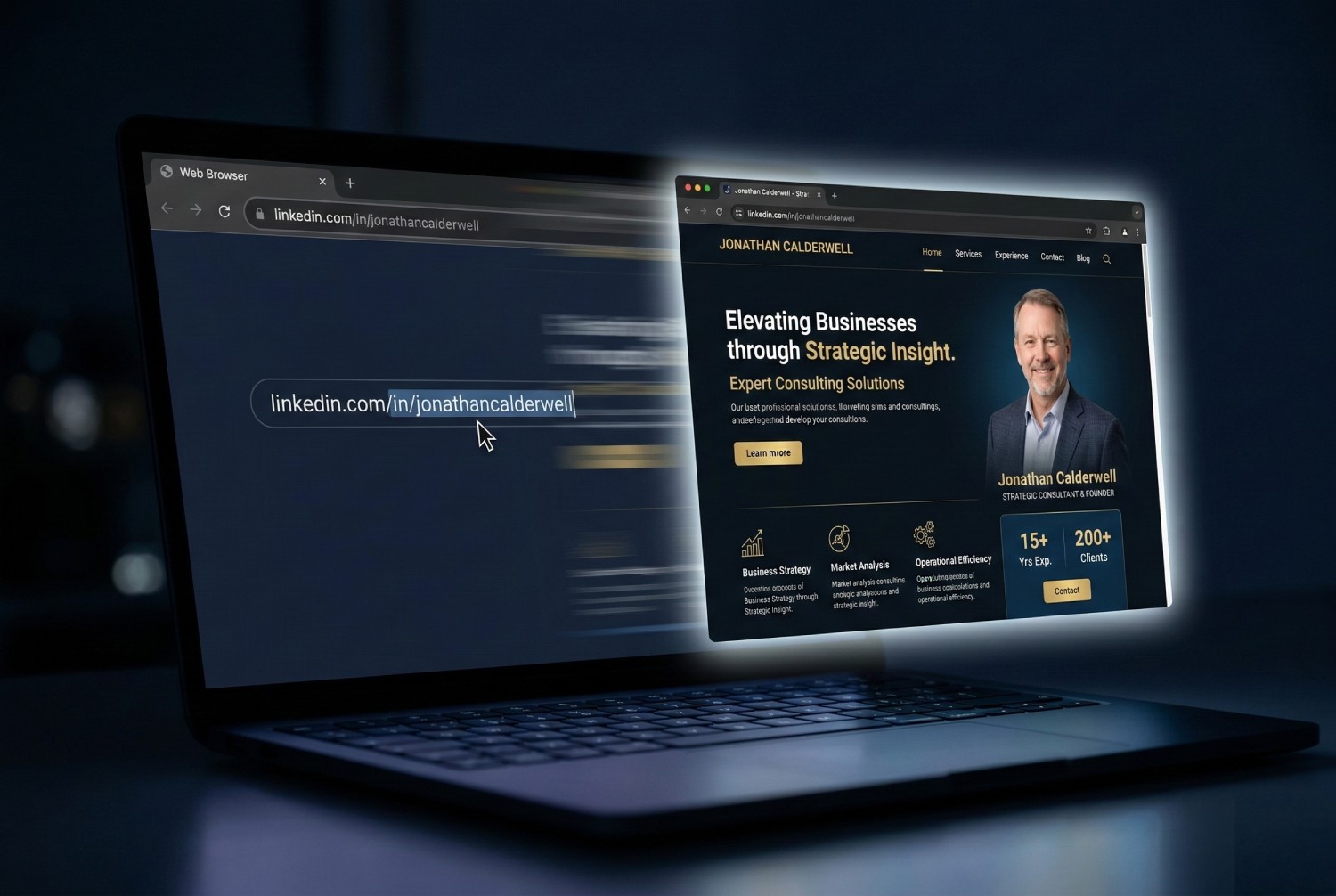
How to Turn Your LinkedIn Profile Into a Professional Website in 90 Seconds

VisePage Team
March 16, 20267 min read
How to Turn Your LinkedIn Profile Into a Professional Website in 90 Seconds

Building a professional website used to mean one of two things: hiring a designer and spending thousands, or spending a weekend wrestling with a generic website builder that started from a blank template and knew nothing about your profession.

Neither of those is true anymore. Whether you are a fractional executive building a client-facing practice, an executive coach launching or refreshing your professional presence, or a consultant who has been meaning to get this done for months — this is the complete step-by-step guide to turning your LinkedIn profile into a live professional website using VisePage. The initial preview takes 90 seconds. The full process, including domain setup and booking integration, takes under 30 minutes.

Read through the whole guide before you start. The preparation tips in step one will save you significant editing time later.

Before You Start: Prepare Your LinkedIn Profile

VisePage reads your LinkedIn PDF to build your website. The better your LinkedIn content, the better your initial website. Two quick changes before you download make a real difference.

Rewrite your headline to lead with an outcome

LinkedIn headlines default to job titles. Fractional CFO. Executive Coach. Strategy Consultant. Board Advisor. These describe what you are, but a prospective client scanning results needs to understand what you produce for them.

Before downloading your PDF, rewrite your headline using this structure: I help [specific client type] [achieve specific outcome].

For example:

  • Fractional CFO: I help Series A to C SaaS companies build board-ready financial operations and raise with confidence.

  • Executive Coach: I help first-time vice presidents develop the presence and decision-making clarity they need at the next level.

  • Fractional CMO: I help B2B companies build demand generation engines that produce qualified pipeline, not just traffic.

  • Strategy Consultant: I help mid-market CEOs clarify where to compete and build the plans to get there.

This change goes directly into your website headline and becomes the first thing a visitor reads. It is the single highest-value edit you can make before downloading your PDF.

Rewrite your summary for a client audience

LinkedIn summaries are commonly written for recruiters: career highlights, skills lists, phrases like "results-driven professional." For an independent professional's website, the summary should speak directly to a prospective client about their problem, your approach, and what they will gain.

If a full rewrite feels like too much right now, do not worry. You can edit the summary inside VisePage after uploading. But 15 minutes spent improving your LinkedIn summary now means significantly less editing later.

Step 1: Download Your LinkedIn Profile as a PDF

Go to your LinkedIn profile page and click the "More" button just below your profile photo. Select "Save to PDF" from the dropdown. LinkedIn will generate and download a PDF of your full profile.

Before downloading, make sure your profile is as complete as possible — summary, experience, skills, education, and any certifications. VisePage builds your website from this PDF, so the more complete it is, the less editing you will need to do afterwards.

Step 2: Sign Up and Upload Your LinkedIn PDF

Go to visepage.com and create your account. Once signed up, upload your LinkedIn PDF and complete the short onboarding — four easy steps in total, including three quick questions about your professional focus. This takes a couple of minutes.

VisePage reads your PDF and builds your website automatically. No LinkedIn login is required. No credentials are shared. Your LinkedIn account is never accessed or modified in any way.

Step 3: Review Your Auto-Built Preview

Within 90 seconds you will see your professional website built from your LinkedIn content. It is complete — not a partially filled template. Every section has content drawn from your profile.

Review the preview in full. You will almost certainly want to edit some sections. The automatic import gets 80 to 90 per cent there; the rest is personalisation. Do not publish yet. First, choose the right template for your role.

Step 4: Choose Your Role-Specific Template

VisePage offers templates designed specifically for each professional category. Select the one that matches how your clients think of your role:

  • Fractional CFO: navy palette, metrics-heavy layout, case study cards with financial outcome fields, booking link pre-labelled as Confidential Consultation.

  • Fractional CMO: vibrant gradient palette, results dashboard, before-and-after campaign metric cards, client portfolio grid.

  • Fractional CTO: clean tech-forward design, architecture decision showcase, engagement model display by company stage.

  • Executive Coach: warm earth tones, testimonial masonry grid, transformation story cards, coaching program cards with pricing, ICF credential display.

  • Management Consultant: professional structured layout, methodology visualisation, case study cards, engagement model section.

  • Strategy Consultant: executive-grade design, framework visualisation, point of view section, speaking and publications showcase.

Each template is designed for that specific professional's buyers — not a generic layout renamed for your role.

Step 5: Edit Your Key Sections

Open the VisePage editor and work through the sections. These are the most important ones to personalise.

Hero headline

This is your most commercially important line of copy. If you rewrote your LinkedIn headline before downloading your PDF, it should already be strong. If not, edit it now using the outcome-first structure: I help [specific client type] [achieve specific outcome].

Services section

Rewrite each service in client language. Not "Executive Coaching" but "Helping first-time VPs develop the presence and decision-making clarity to lead confidently at the senior level." Not "Strategic Advisory" but "Helping CEOs decide where to compete and how to win over the next three years." Every service should describe an outcome the client gains, not a category of work you do.

Case studies

This is the most important section to add if it is not already populated. Add at least one case study using this format:

  • Context: the client's profile and starting situation.

  • Challenge: what was broken or missing and what the stakes were.

  • What you did: four to six specific actions.

  • Outcome: two to four quantified results with before-and-after figures and a timeframe.

Anonymise by industry and stage if NDAs apply. "Helped a Series B SaaS company extend runway from 4 months to 18 months" is fully anonymised and fully compelling. "Coached a first-time VP from reactive firefighting to calm strategic leadership within five months" works equally well for a coach without naming anyone.

Testimonials

Add any client testimonials you have received. LinkedIn recommendations are a good source. Focus on ones that mention specific outcomes rather than general praise.

Availability

Set your current availability status. "Currently accepting two new fractional engagements" or "Now booking Q2 coaching clients" is a more powerful signal than any tagline. Visible availability removes the uncertainty that stops prospects from reaching out.

Step 6: Connect Your Domain

A custom domain — yourname.com or yourpracticename.com — is the single most important signal of professional seriousness. Follow VisePage's guided DNS setup. The process takes around 10 minutes and SSL is included automatically.

If you do not yet have a domain, register one before publishing. yourname.com is always the first choice. If it is taken, yournameconsulting.com, yournamecoaching.com, or firstname-lastname.com are strong alternatives.

Step 7: Enable Bookings and Payments

On VisePage Pro, connect your Calendly account for direct booking integration and optionally connect Stripe if you accept paid consultation or coaching fees. Both integrations take under three minutes to set up.

Once enabled, your booking button routes visitors directly to your calendar. This is the highest-impact conversion change on any independent professional's website. A coach accepting paid discovery calls, a fractional executive offering a strategy session, or a consultant running a scoping call — all benefit from the same mechanic: one click from interested to booked.

Step 8: Publish

Review your site one final time at desktop, tablet, and mobile sizes. Check that your booking link works. Confirm your domain is resolving correctly. Click Publish.

Three Things to Do in the First Week

1. Update your LinkedIn profile to link to your website

Add your new website URL to the Website field in your LinkedIn contact info. Add a line to your LinkedIn summary too: "Learn more about my work and book a call at yoursite.com." This routes LinkedIn visitors to your conversion-optimised website.

2. Share your new site on LinkedIn

Post a short update announcing your new website. What it shows, why you built it, and a link. This generates early traffic and signals that your practice is serious and active.

3. Add your site URL to your email signature

Every email you send is a potential touchpoint. Adding your website URL to your signature with a one-line description and your booking link turns routine correspondence into passive client development.

Your LinkedIn profile is already your website's content. VisePage just gives it a home that converts.